
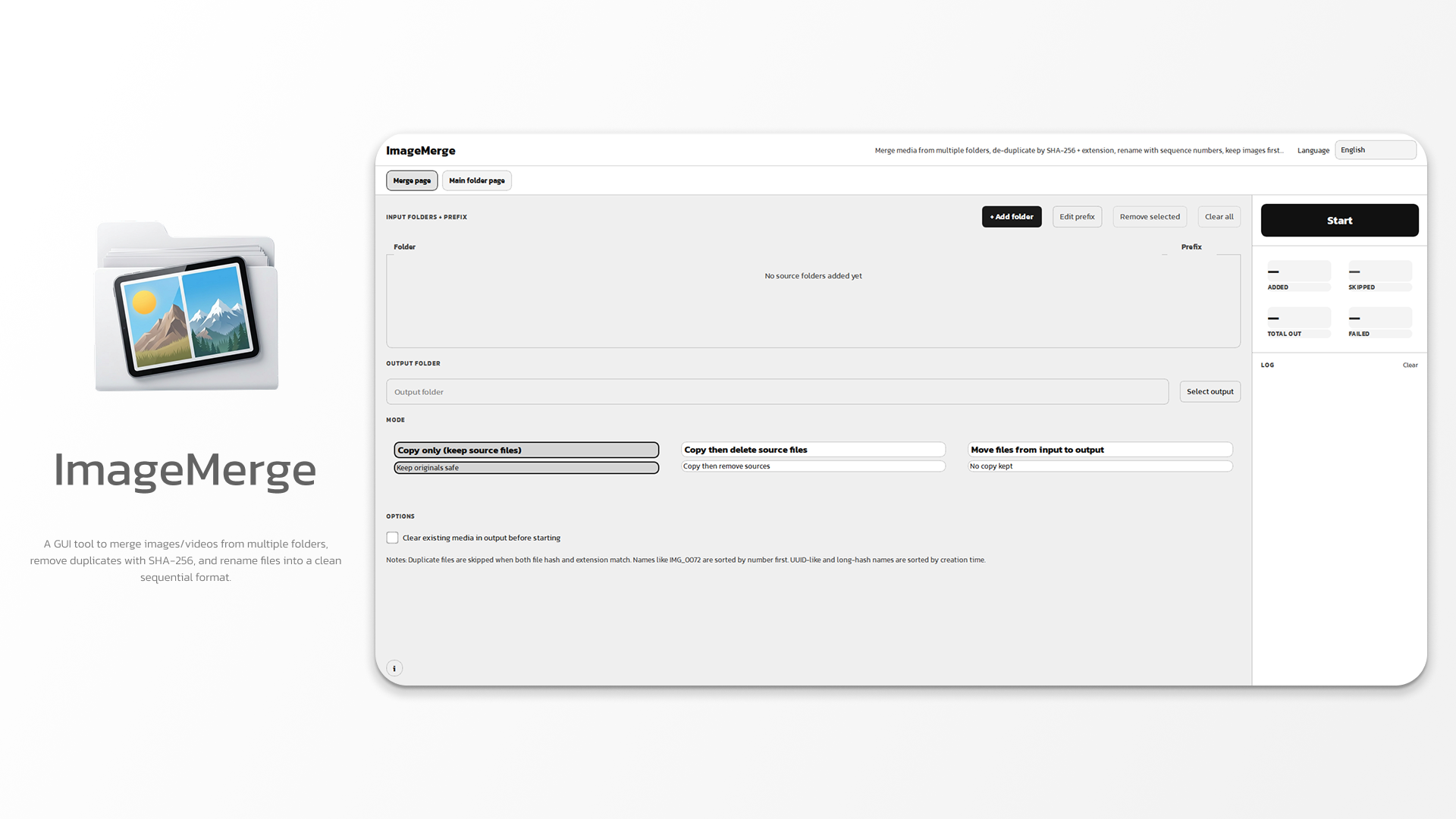
ImageMerge






ImageMerge combines images and videos from folders, removes duplicate files, and renames the results into an ordered sequence.
Features
- Merge files from multiple folders, or organize files already in one folder.
- Copy, move, or copy and delete source files.
- Detect duplicates by file content and extension.
- Add an optional prefix to filenames.
- Stage changes in a temporary workspace by default; staged changes are applied only when processing completes.
- Sort media into predictable groups and rename them into one sequence.
Mode Preview
<table style=“width:100%; table-layout:fixed; text-align:center; margin:auto;”> <thead> <tr> <th style=“text-align:center;”>Merge</th> <th style=“text-align:center;”>Library</th> <th style=“text-align:center;”>Tidy</th> </tr> </thead> <tbody> <tr> <td> <img src=“screenshots/merge.png” style=“width:100%; height:min(60vh,500px); object-fit:contain; display:block; margin:auto;”> </td> <td> <img src=“screenshots/library.png” style=“width:100%; height:min(60vh,500px); object-fit:contain; display:block; margin:auto;”> </td> <td> <img src=“screenshots/tidy.png” style=“width:100%; height:min(60vh,500px); object-fit:contain; display:block; margin:auto;”> </td> </tr> </tbody> </table>
Sort priority
For Merge (copy/move from input folders), compare top to bottom. Each extension is sorted separately; within an extension, filename classes are ordered as shown:
1. Media type: Images → Videos
2. Extension, within each media type:
   ├─ Images: .png → .jpg → .jpeg → .webp → .bmp → .gif → .tiff
   └─ Videos: .mp4 → .mov → .mkv → .avi → .webm → .m4v → .wmv → .flv → .ts → .mts
3. Filename class, within each extension:
   ├─ IMG + number → IMG number → timestamp → filename
   ├─ UUID/hash    → timestamp → filename
   └─ Other names → parsed number → duplicate suffix → timestamp → filename
IMG + number means a filename matching the app’s IMG pattern, e.g.
IMG_2.jpg; plain 2.jpg is an Other name. For other names, the parser
can extract a number from names such as 2.jpg, 2-holiday.jpg, and
holiday-2.jpg; these sort numerically (2 before 10). A suffix such as
(1) after the number is the next tie-breaker. Names with no parsed number
(e.g. holiday.jpg, words in any language) sort after numbered names, then by
timestamp and filename. UUID/hash names must match the app’s recognized UUID
or hexadecimal-hash patterns.
Numbers sort ascending; timestamps sort oldest first. Merge uses the OS
creation/change timestamp (ctime; its meaning varies by OS). Filename class
comes before date, so an older UUID/hash file still follows an IMG file of
the same extension. Input-folder order and input prefix do not affect sorting;
the prefix is only added to the output name.
After sorting, output numbering runs continuously from 0001 across extensions
and input folders.
Example input:
trip/
├── 10.png
├── 2.png
└── 1.jpg
more/
├── 1.png
├── 3.jpg
└── 2.mp4
Result (with trip and more supplied as input prefixes):
more-0001.png   # more/1.png
trip-0002.png   # trip/2.png
trip-0003.png   # trip/10.png
trip-0004.jpg   # trip/1.jpg
more-0005.jpg   # more/3.jpg
more-0006.mp4   # more/2.mp4
Output names and order
Output files are named NNNN.ext or prefix-NNNN.ext (number of 4+ digits,
continuous from 0001). Merge, Library and Tidy all follow the same rules for
files already in the output folder:
- Files already in this format keep their order, sorted by number only. If a number is missing, later files move up to close the gap.
- Other files (new, or hand-named like
a.jpg) go after them, sorted by media type → extension → modification time (Tidy only) → number in the name → filename. - A file is renamed only when its name has to change.
Download and Install
Download the latest version for your operating system from GitHub Releases, or choose one of the download options below.
<p align=“center”> <a href=“https://sourceforge.net/projects/imagemergepy/files/latest/download”><img src=“https://a.fsdn.com/con/app/sf-download-button” alt=“Download ImageMerge from SourceForge” height=“40”></a> <a href=“https://get.microsoft.com/installer/download/9ndnkpjpzt67?referrer=appbadge”><img src=“https://get.microsoft.com/images/en-us dark.svg” alt=“Get ImageMerge from Microsoft Store” height=“40”></a> </p>
Windows
- Install from the Microsoft Store
or with WinGet:
winget install TamKungZ.ImageMerge. - Or download and run
ImageMerge-windows-x64.msi. - The standalone ZIP does not install the app; extract it and run
ImageMerge.exe. - The MSI adds
ImageMergetoPATH. Open a new terminal to use the CLI.
Linux
-
Ubuntu: install the
.debfrom Releases, or use the PPA on Ubuntu 22.04, 24.04, or 26.04:sudo apt install -y curl gnupg software-properties-common sudo rm -f /etc/apt/sources.list.d/tamkungz-stable.list sudo add-apt-repository -y ppa:tamkungz/stable sudo install -d -m 0755 /etc/apt/keyrings curl -fsSL https://packages.tamkungz.me/gpg.key | sudo gpg --dearmor --yes -o /etc/apt/keyrings/tamkungz.gpg sudo apt update && sudo apt install -y imagemerge -
Debian/Ubuntu and Fedora/RHEL users can also install from the TamKungZ package repository, which provides copyable setup and install instructions.
-
Fedora and compatible distributions: install the
.rpm. -
AppImage, Flatpak, and Snap packages are also available in Releases.
-
The
.deb,.rpm, and PPA packages provide theimagemergecommand.
macOS
-
Install with Homebrew:
brew tap TamKungZ/tap brew trust TamKungZ/tap brew install --cask imagemerge -
Or download the app bundle for Apple Silicon (
arm64) or Intel (x64). Direct-download bundles are not signed or notarized, so Gatekeeper may block them.
Command line
Packaged builds can run without opening the GUI. Repeat --input for each
source folder; a prefix can be added as PATH::PREFIX.
imagemerge --input "/path/to/photos::trip" --input "/path/to/videos" --output "/path/to/output" --mode copy_keep
On Windows, use ImageMerge instead of imagemerge.
Available modes:
copy_keep(default): copy files and keep the originals.copy_delete: copy files, then delete the originals.move: move files to the output folder.main_folder: organize the output folder, then optionally import other folders. No--inputis required.inside_folder: organize files in the output folder in place.
Input folders must already exist. --clear-output removes media files from the
output before processing. --remove-duplicates applies only to
inside_folder; --allow-duplicates imports matching files instead of
skipping them. Safe temporary staging is on by default; use --no-safe-temp to
write directly to the output folder.
For developers
Run from source with Python 3.10 or later, install the dependencies in
requirements.txt, then launch with python MainApp.py. The native C ABI SDK
for calling ImageMerge from other languages is documented in
native/imagemerge-sdk.
See Releases.md for version history.